Managing Faxes
The Fax dashboard allows you to manage incoming and outbound faxes, providing a variety of actions that can be performed on these actions.
Use the dropdowns below to learn more.
 Printing a Fax
A faxed document can be printed by highlighting the fax and selecting Print.

Re-sending a Fax
A fax can be re-sent from the Outbox of the Fax dashboard.
To resend a fax:
-
From the Fax dashboard, select Outbox.
-
Highlight the fax and select Re-Send.

Archiving a Fax
A fax in the Inbox can be archived by highlighting the fax and selecting Archive.

The fax will then display in the Archive section of the Fax dashboard.
Attaching a Fax to a Patient, Prescriber, Group or Prescription
Faxed documents can be directly attached to a patient, prescriber, group or prescription. This reduces the need to print the document and re-scan it into correct location of Propel Rx
To attach a faxed document to a patient, prescriber, group or prescription:
-
In the Inbox folder of the Fax dashboard, highlight the fax.
-
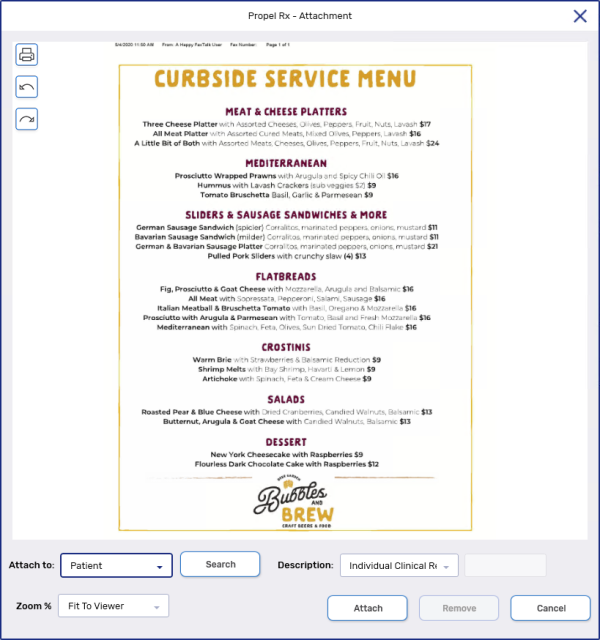
Select Attachment. The Attachment window appears.
-
Select the following information:
-
Attach to - select where the faxed document is being attached.
-
Description - select the description of the fax.
-
-
If patient, doctor or group was selected from the Attach to dropdown - select Search to search for and select the patient, prescriber or group.

-
If prescription was selected from the Attach to dropdown - enter the prescription number in the Rx(s) field.
If the fax should be attached to multiple prescriptions, separate the prescription numbers with a forward slash /.

-
Select Attach.